
Krystal Klear / Getting started
Set up Krystal Klear for Asian Prediction Market
Create your accounts, link Asian Prediction Market, set the bot controls, fund your account, and configure the markets you want the bot to monitor.
Before you begin
- Access to your email inbox
- An AsianPM account
- An email address for Krystal Klear sign-in
- Polygon USDT for funding AsianPM
- An optional external wallet such as Trust Wallet
Create or sign in to your AsianPM account
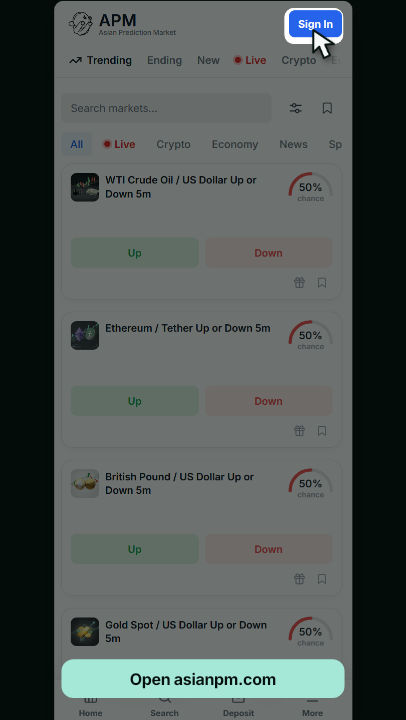
Open asianpm.com in your browser. Create an account, or sign in if you already have one.
Open Krystal Klear
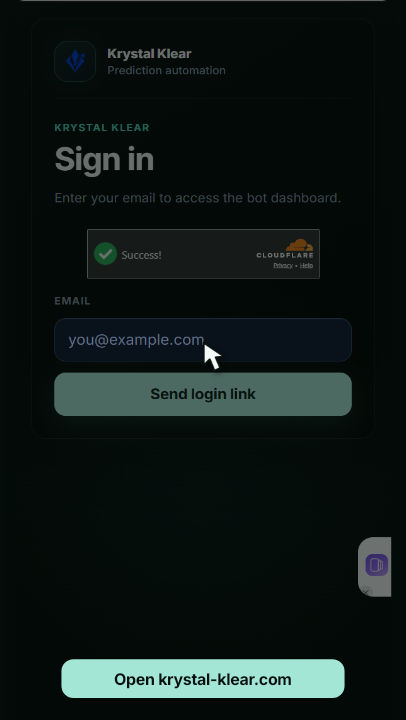
In another browser tab, open krystal-klear.com. Enter the email address you want to use for the bot dashboard.
Request the sign-in email
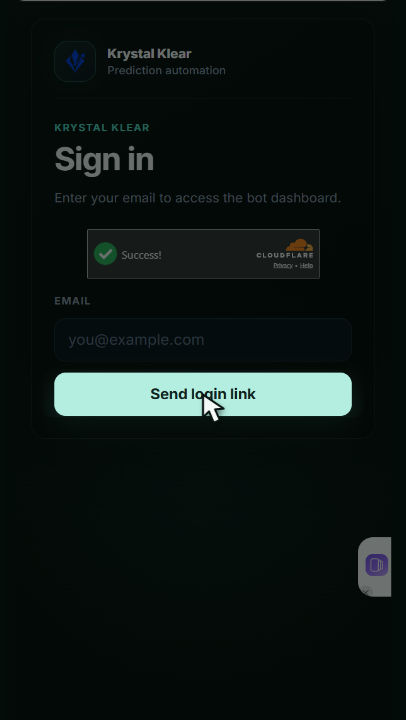
Complete the verification check, then select Send login link. Krystal Klear will send a one-time sign-in link to the email address you entered.
Open the email and sign in
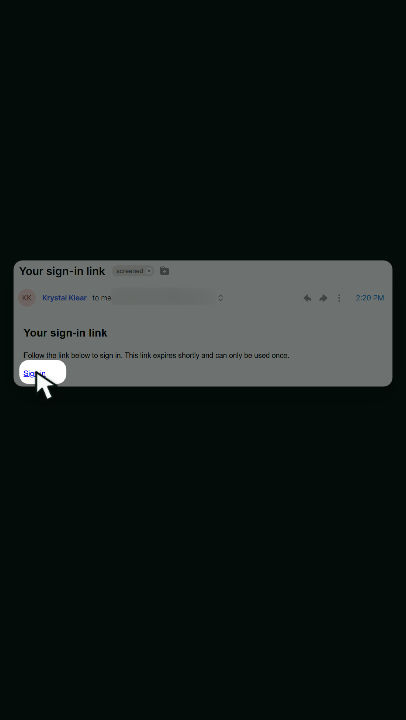
Open your email inbox and find the message from Krystal Klear. Select Sign in to open your dashboard. The link expires shortly and can only be used once.
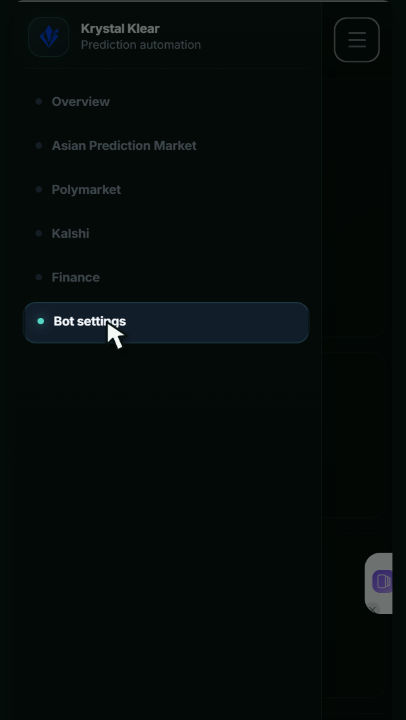
Open Bot settings
Open the Krystal Klear navigation menu and select Bot settings.
Connect Asian Prediction Market
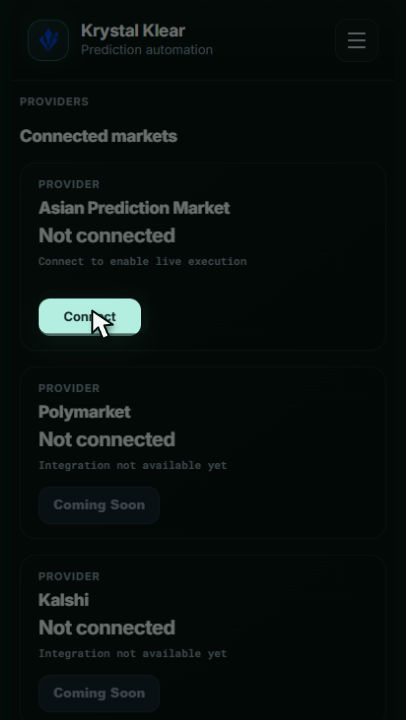
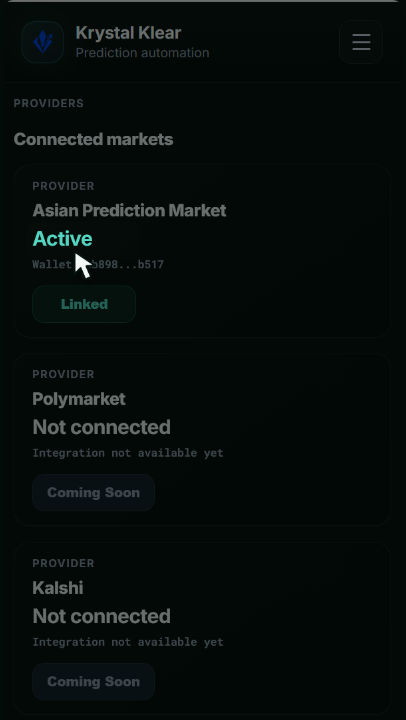
Under Connected markets, find Asian Prediction Market and select Connect. Wait for the connection to finish, then confirm the provider is marked Active and its button says Linked.
Configure the global bot controls
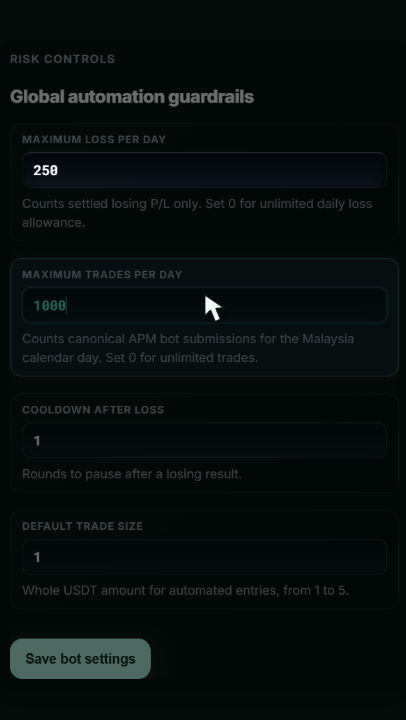
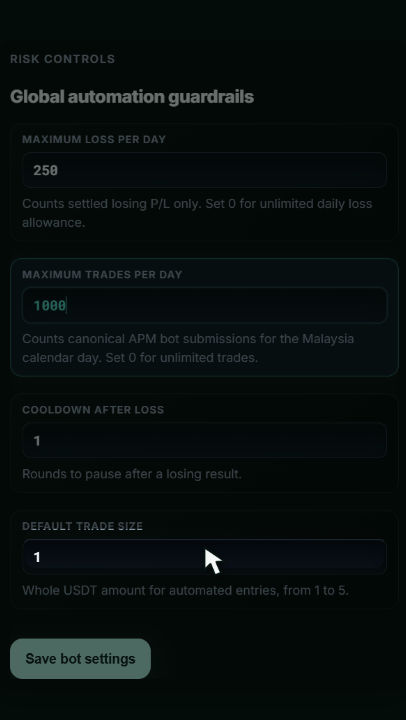
In Global automation guardrails, enter the following values:
- Maximum Loss Per Day250
- Maximum Trades Per Day1000
- Cooldown After Loss1
- Default Trade Size1
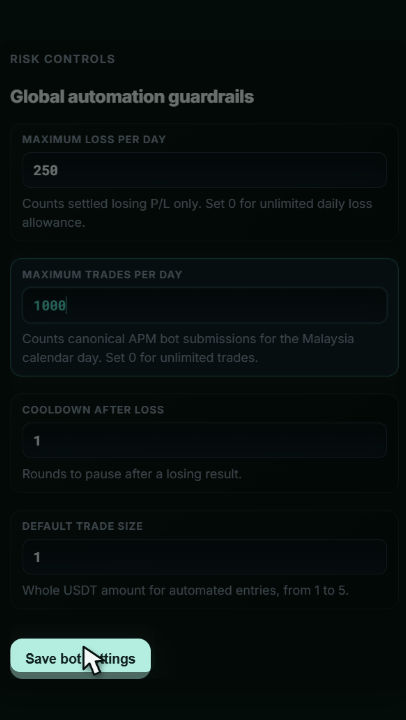
Review the values, then select Save bot settings.
Deposit funds into AsianPM
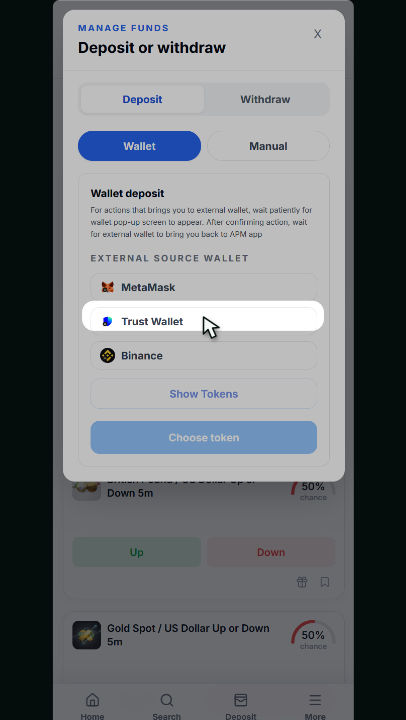
Return to asianpm.com and open Deposit. Deposit an amount you are comfortable starting with. A small test amount, such as 5 USDT, can help you become familiar with the process.
Network check: use USDT on the Polygon network and verify the destination before sending funds.
Optional: install Trust Wallet
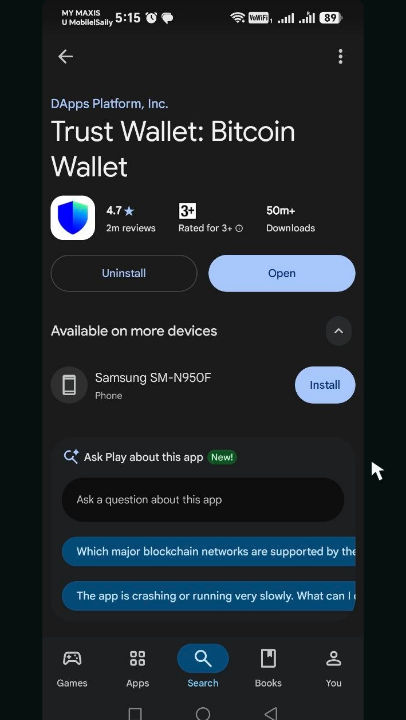
If you need a wallet for Polygon USDT, install Trust Wallet from the official Play Store or App Store listing. Skip this step if you already have a compatible wallet and Polygon USDT.
Obtain Polygon USDT
In Trust Wallet, select Buy. Choose USDT on the Polygon network, enter the amount, and complete the purchase using an available payment method.
Purchase availability, minimum amounts, fees, and payment methods depend on your location and provider. Confirm that the token is Polygon USDT before continuing.
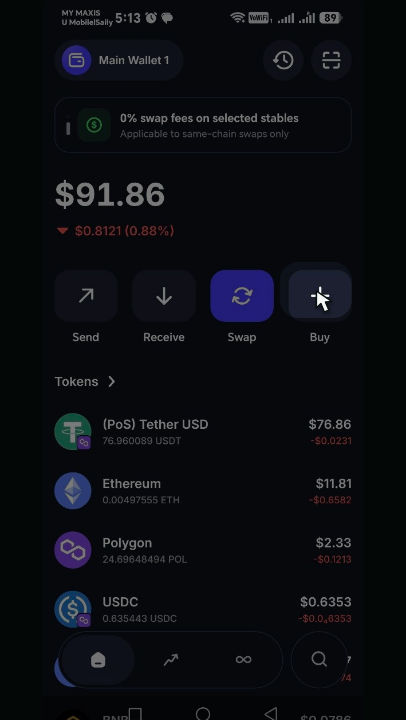
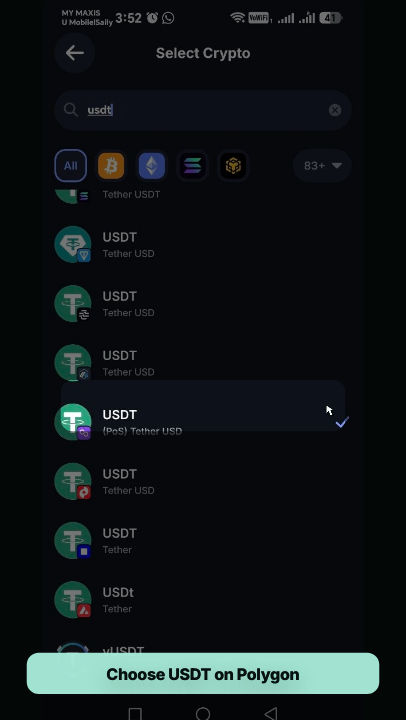
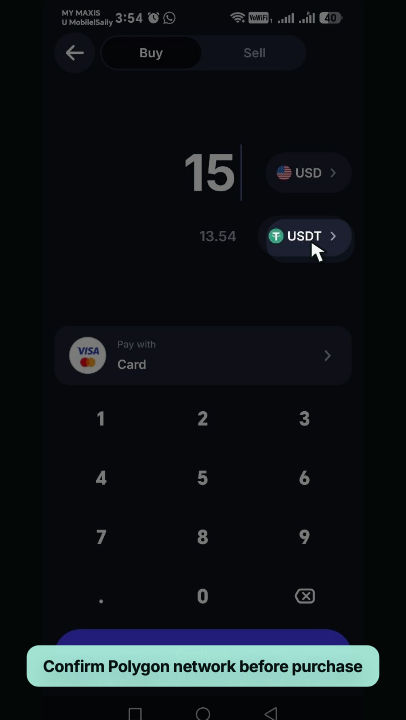
Open Asian Prediction Market in Krystal Klear
After funding AsianPM, return to krystal-klear.com. Open the navigation menu and select Asian Prediction Market.
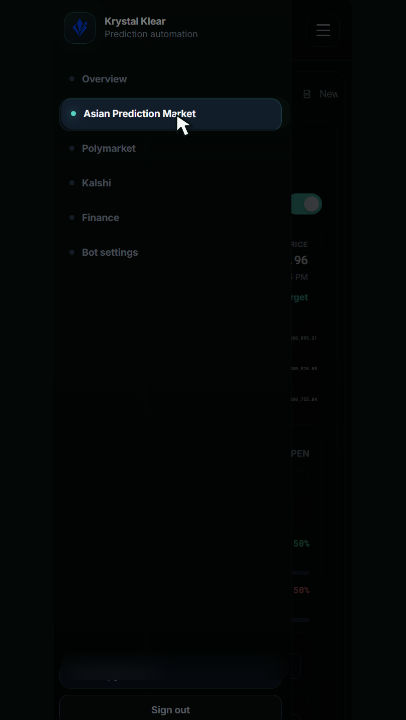
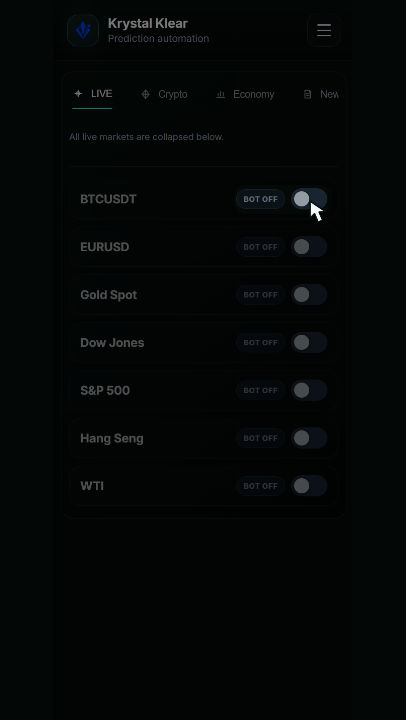
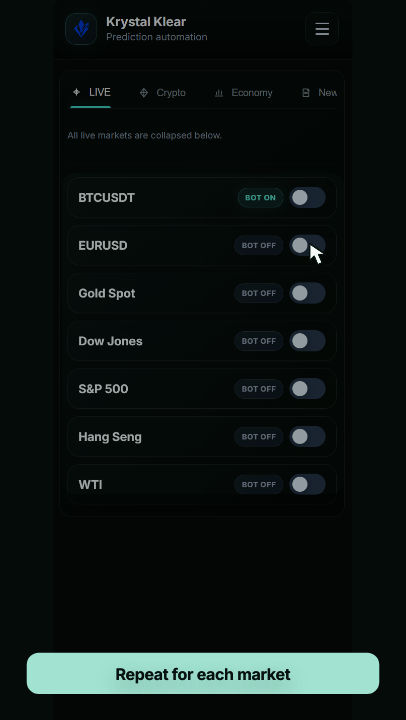
Enable BTCUSDT
Find BTCUSDT and switch its top-right toggle to On. This expands the market configuration.
Configure the BTCUSDT strategy
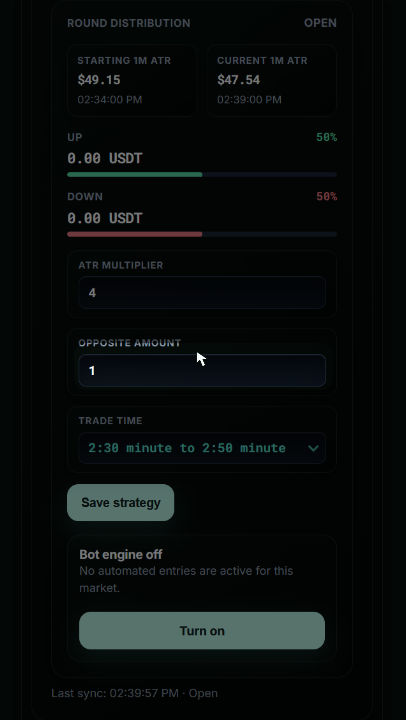
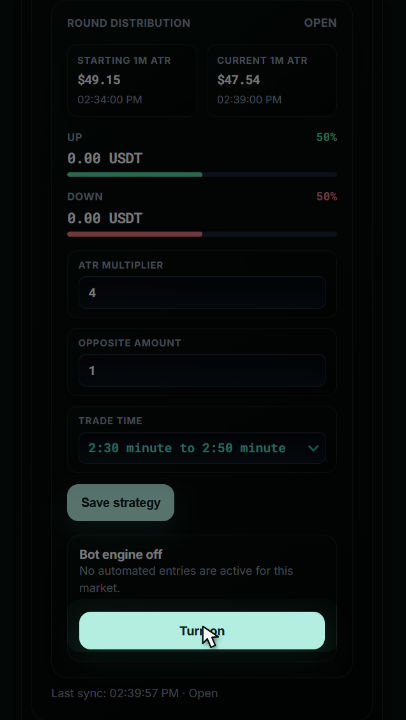
In Round Distribution, enter the required strategy values:
- ATR Multiplier4
- Opposite Amount1
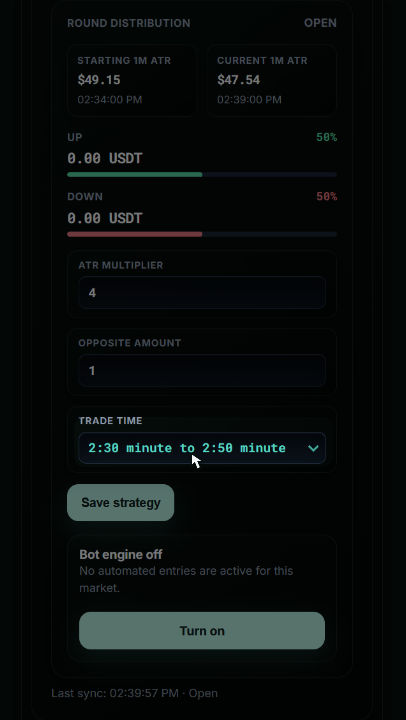
- Trade Time2:30–2:50
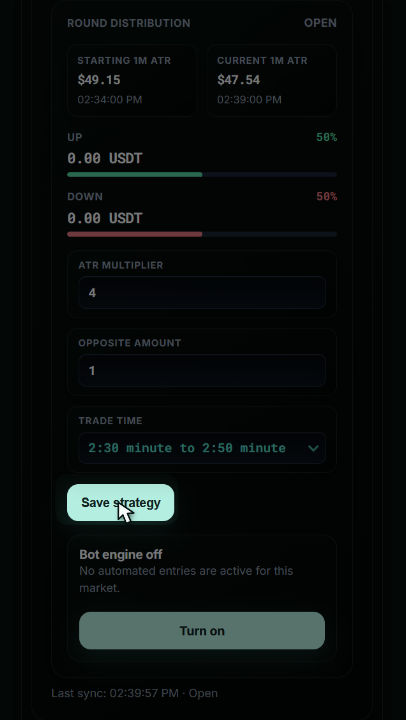
For Trade Time, choose 2:30 minute to 2:50 minute, the final option in the dropdown. Select Save strategy, then select Turn on to power on the BTCUSDT bot.
Configure the remaining markets
Close or collapse the BTCUSDT configuration to return to the market list. Repeat the same setup for each remaining market you want the bot to trade.
Monitor the bot
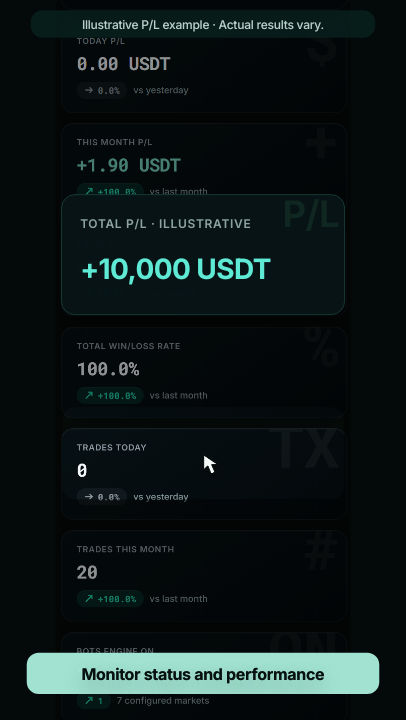
Open Overview to monitor configured bots, trades, and performance.
The P/L animation shown in the tutorial is illustrative. Actual trading results will vary.
Final checklist
- AsianPM account created or signed in
- Krystal Klear email sign-in completed
- Asian Prediction Market marked Linked
- Global bot controls saved
- AsianPM funded with Polygon USDT
- BTCUSDT strategy saved and turned on
- Other desired markets configured
Risk notice: Automated trading does not guarantee profits. Start with an amount you are comfortable using, review your limits, and monitor your bot regularly.